
How to use OwnCup
Find a café on the map, scan the code on the counter and collect stamps. The account is free and there is no card to carry.
What the app does
OwnCup has three sections. Explore — the map and the list of places nearby. Wallet — what you have collected in each café. Settings — profile, language and notifications. There is nothing else to learn.
The café sees the name you entered and the history of confirmed purchases in its own place. Your contacts and your purchases in other cafés are not available to it.
Step by step
- 01
Create an account
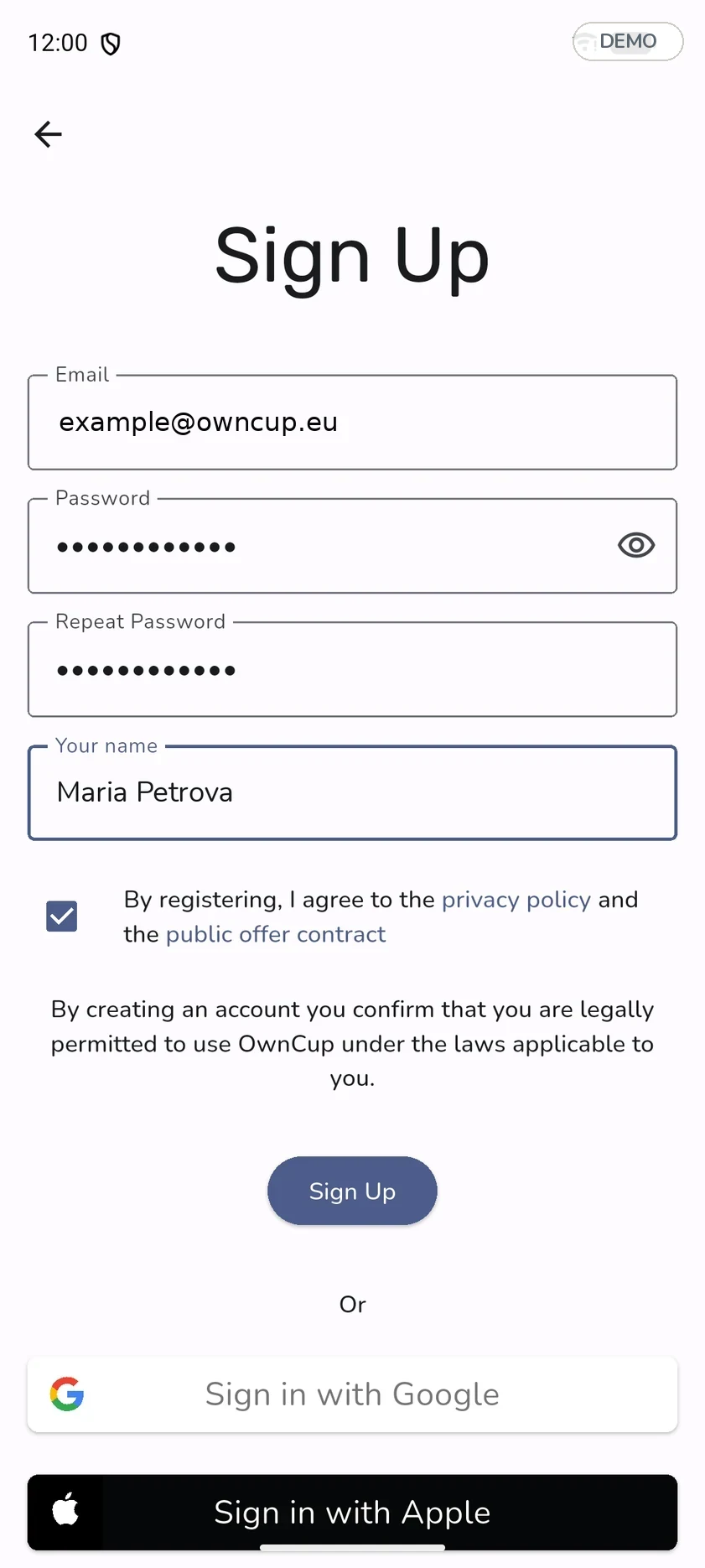
Enter email, password and name. A confirmation code arrives by email — type it on the next screen. Signing in with Google or Apple is faster: then neither password nor code is needed.
The name you enter is what the café sees when it confirms a purchase. If you leave the name empty, the app fills in a generated one — a string of letters and digits.
- 02
Sign in if you already have an account
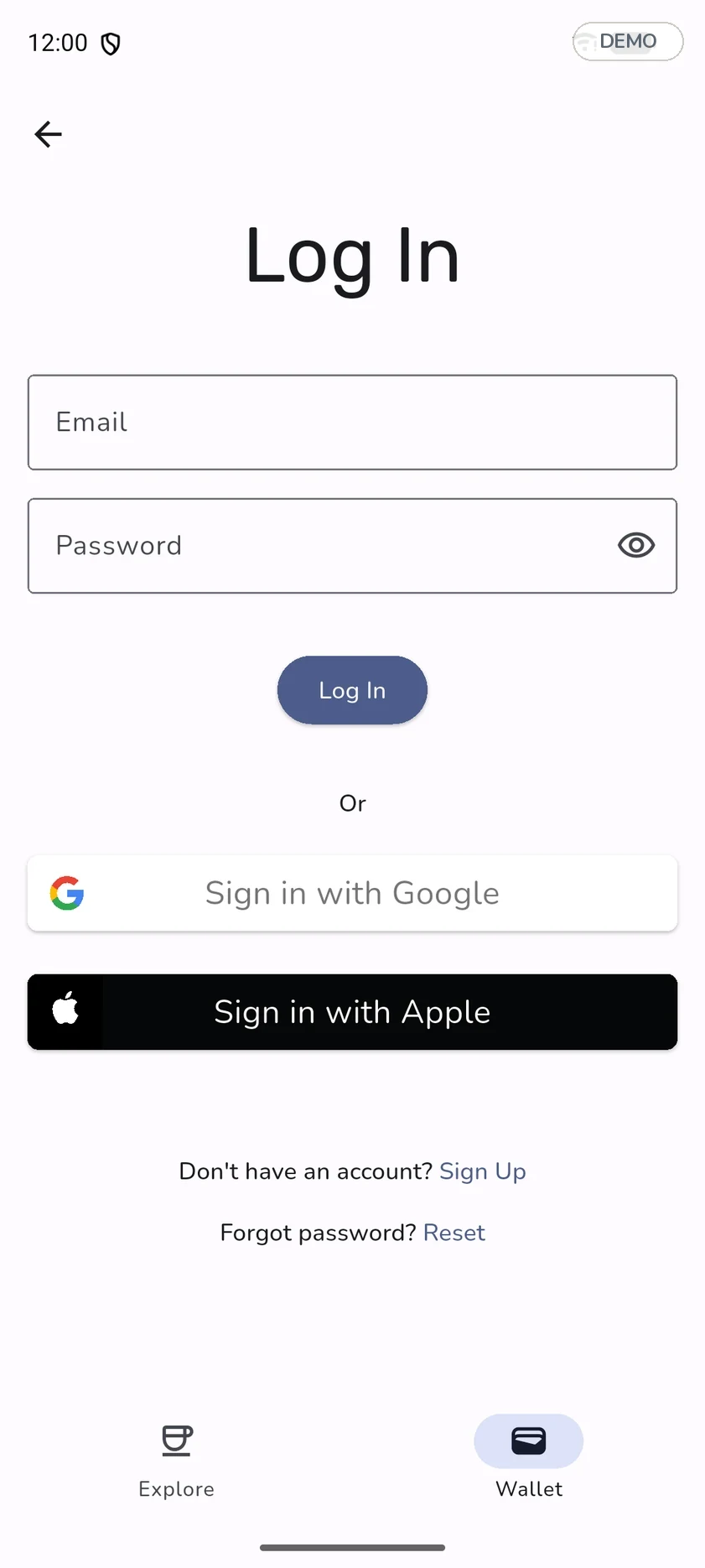
The sign-in screen has the same three ways: email with a password, Google or Apple. Forgot the password — the “Reset” link sends a recovery email.
- 03
Find a café
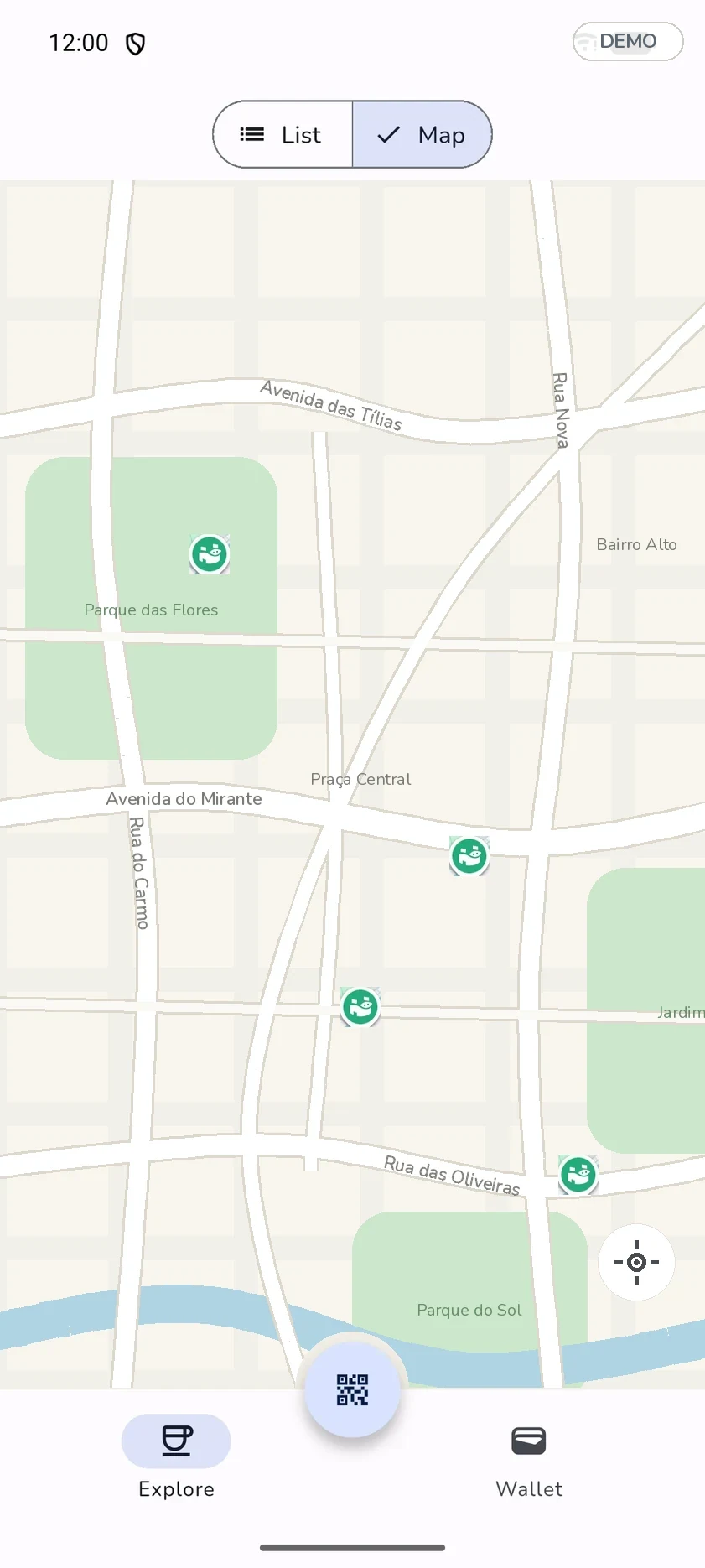
Explore shows places as a list or on a map — the switch is at the top. There is no search by name — browse the nearby places and select the one you want.
A place card shows photos, the address, opening hours and every active offer.
- 04
Scan the code in the café
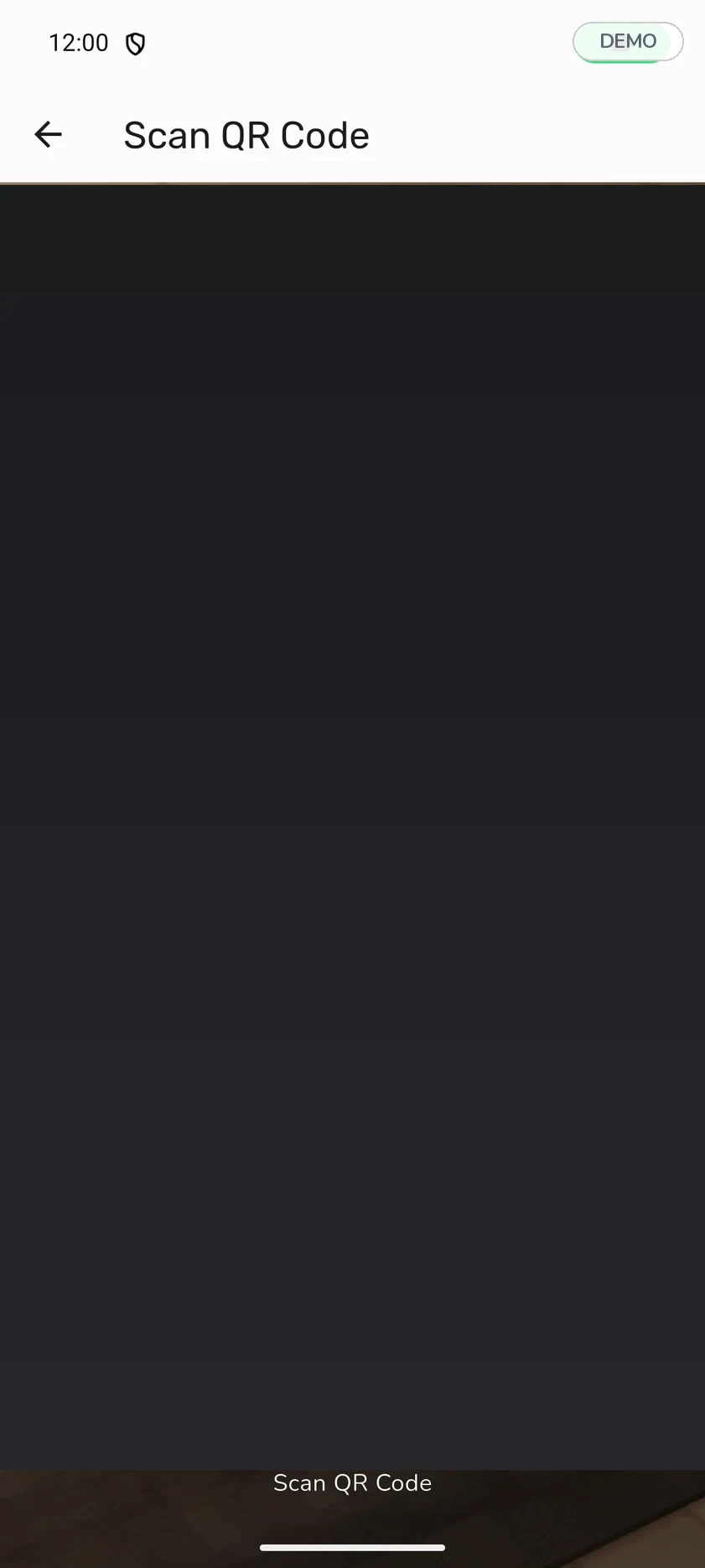
The scan button sits in the middle of the bottom bar and opens the camera straight away. Point it at the QR code on the counter or the table. The place card opens with its offers: tap Apply on the one you want. Nothing else is needed — the request goes to the staff member, who confirms it on their own device.
The code belongs to the café, not to you: you scan, the staff member confirms. An unrelated code is simply ignored — nothing happens and the camera stays open. That means you pointed it at the wrong code.
- 05
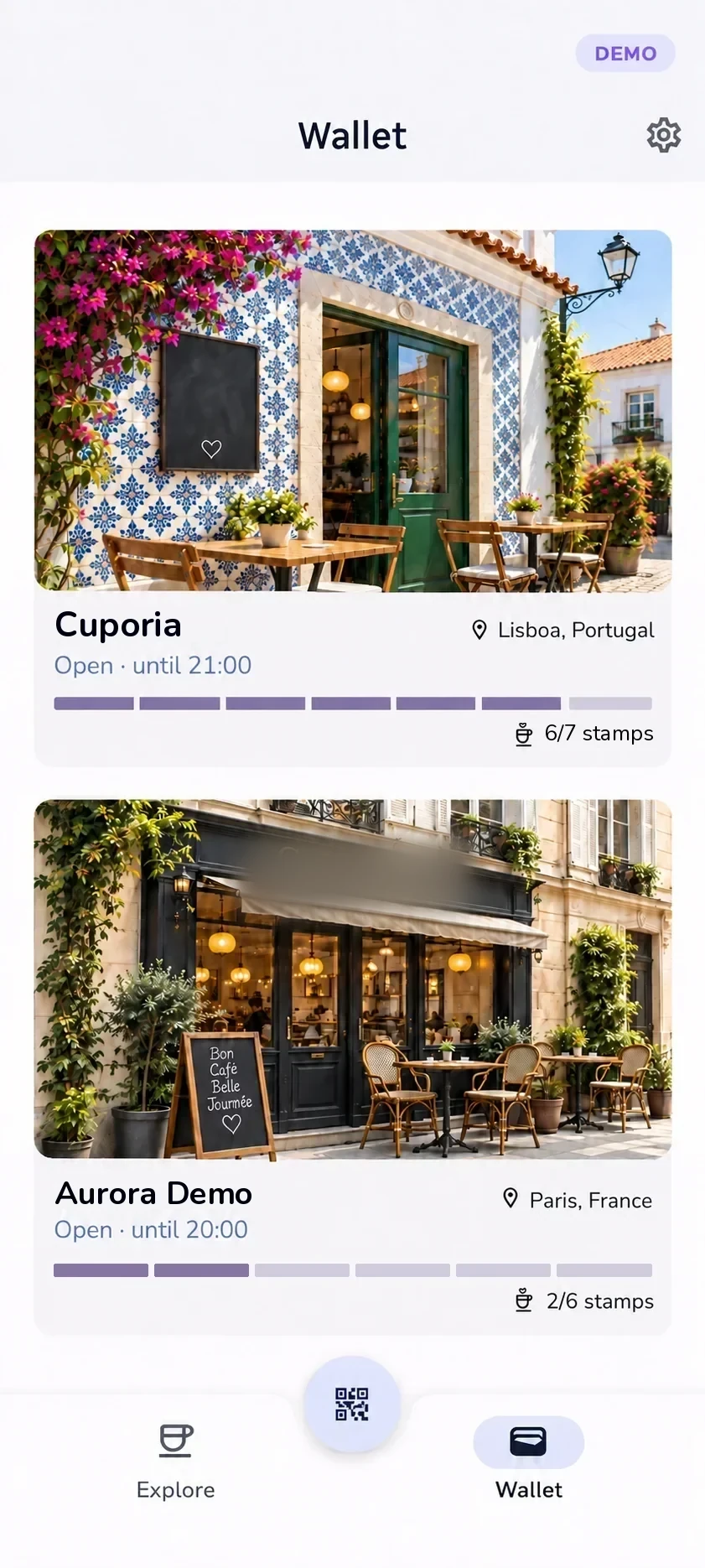
Follow your progress in Wallet
Before the first scan, Wallet is empty. A place card appears there after the first confirmed purchase and from then on shows how many stamps you have collected and how many are left before the reward. A stamp counts when the staff member confirms the request on their device — not at the moment you scan.
- 06
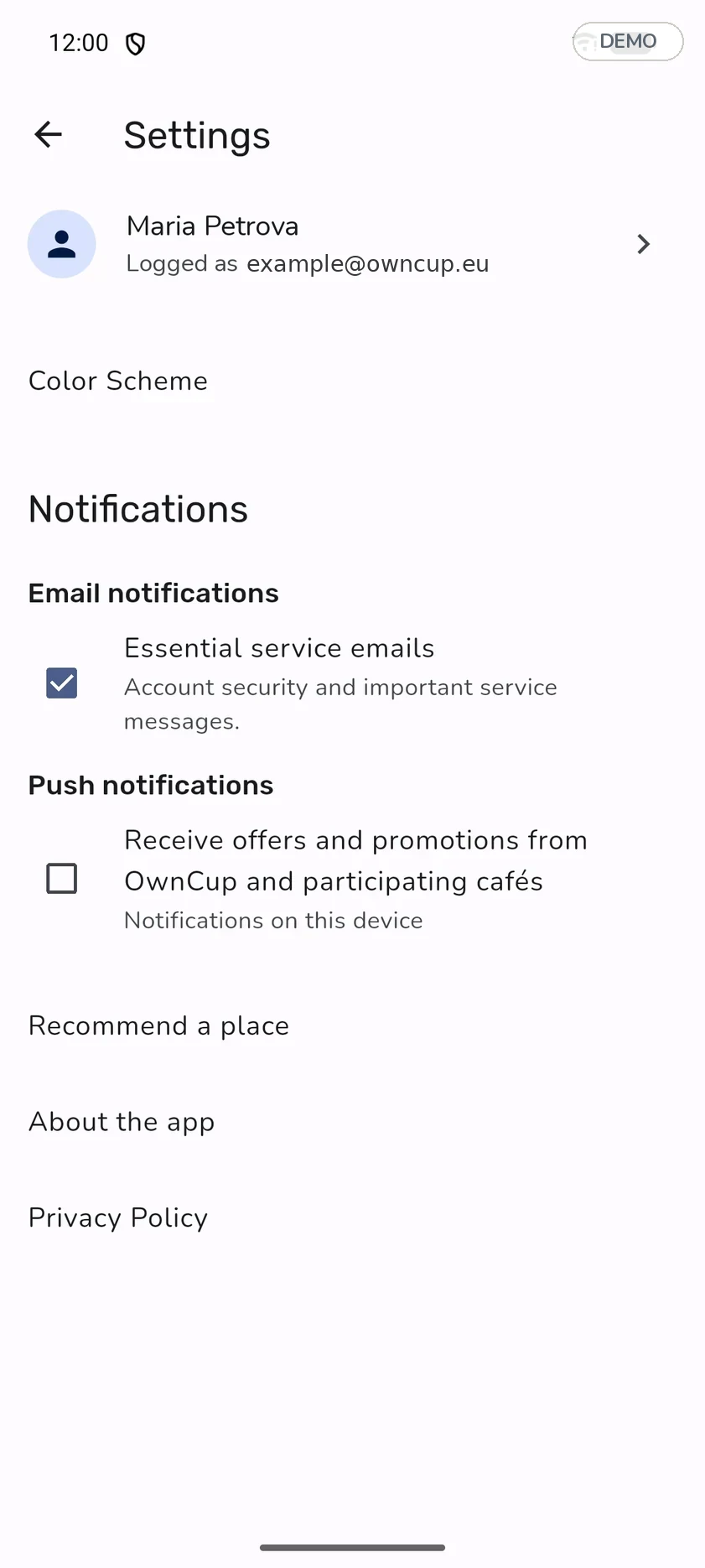
Set up notifications
Settings has two switches. Email notifications — service messages about account security, which cannot be turned off. Push notifications — notifications about offers from OwnCup and participating cafés. They are off by default and can be turned on only by you.
- 07
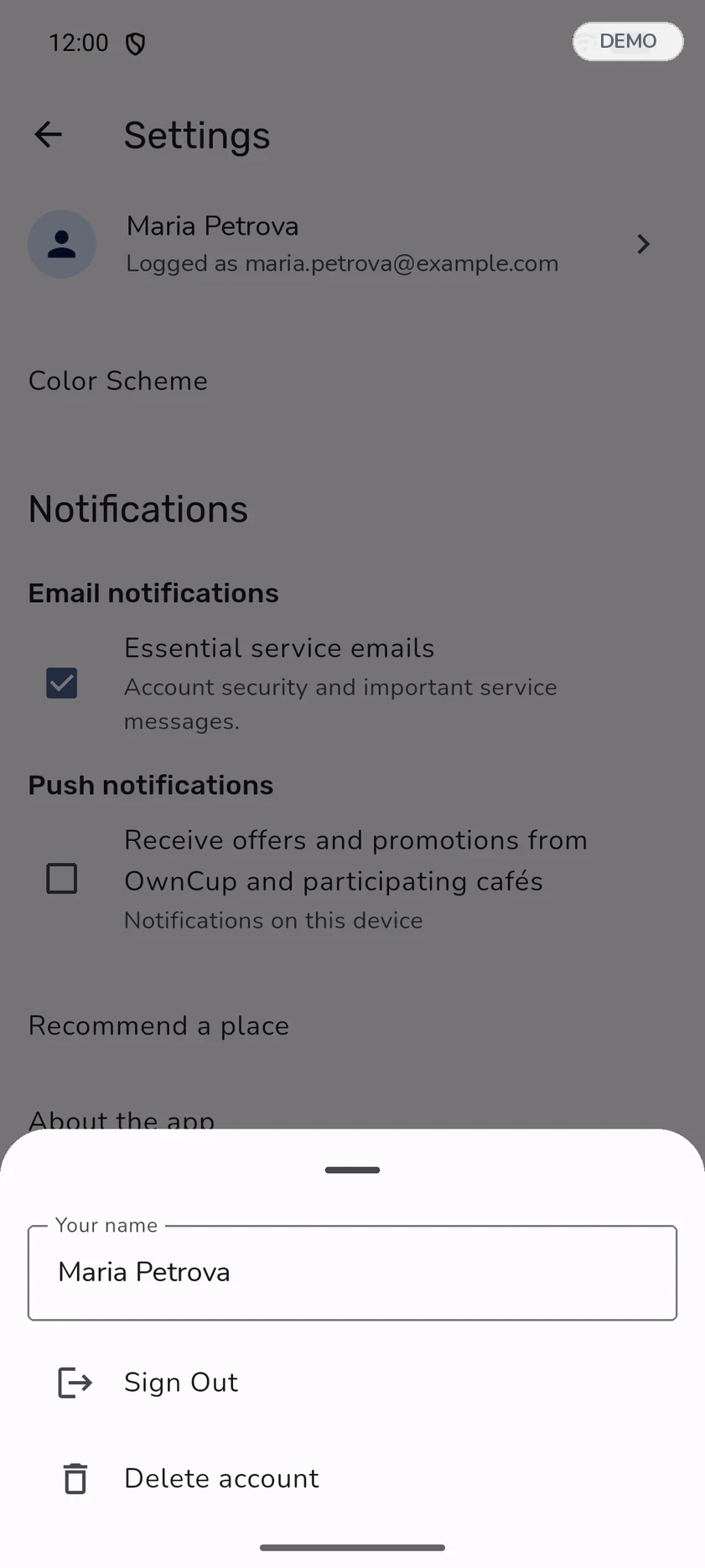
Sign out or delete the account
Tap your name at the top of Settings — a sheet opens with “Sign Out” and “Delete account”. Signing out keeps what you collected: it is all there next time you sign in. Deleting the account is irreversible and wipes everything you collected.
Short answers
- Do I need a plastic card?
- No. Everything is in the app; a phone is enough.
- What if I forgot to scan the code?
- The stamp is credited at the moment of purchase. It cannot be added afterwards — ask the staff member before you leave.
- Does my progress carry over to another café in the same chain?
- It depends on the chain’s settings: offers can be shared across all locations or specific to each one. The terms are written on the place card.
- Does the café see what I buy?
- The café sees the name you entered when signing up and the confirmed operations of its own programme. It cannot access your contact details or purchases made at other cafés.
- Can I report a place?
- The place card has a “⋮” menu with a “Complain” item.
Have not installed the app yet?
OwnCup is available for iPhone and Android. The account is free.